
Lyca's Unlimited eSIM Plans for iPhone at Unbeatable Prices
Why Get an eSIM for iPhone
If you have an iPhone and are still using a plastic SIM card, you’re missing out on a lot of convenience and additional security. An eSIM is the latest in SIM technology and is built into your iPhone. All you have to do is activate it, which is usually done by scanning a QR code.
Additionally, upgrading to an eSIM is the eco-friendly option. Since everything’s digital, there’s no plastic or paper involved.
All you need to upgrade your Lyca physical SIM or get a new eSIM is a compatible iPhone and an internet connection. The entire process will be done in a few taps! Make the switch today!
The Best eSIM Plans for Your iPhone
with High-Speed 5G Data
How to Get an eSIM Plan for Your iPhone
Looking to get an eSIM plan for your new iPhone? You’re at the right place! With Lyca Mobile, you can purchase an eSIM + plan bundle in just 3 steps! Here’s how you can become a part of one of the world’s largest MVNOs.
Is Your iPhone eSIM-Compatible?
Refer to the list below for eSIM-compatible iPhones.

Buy an eSIM Bundle
Pick one of Lyca’s pocket-friendly deals and opt for an eSIM.

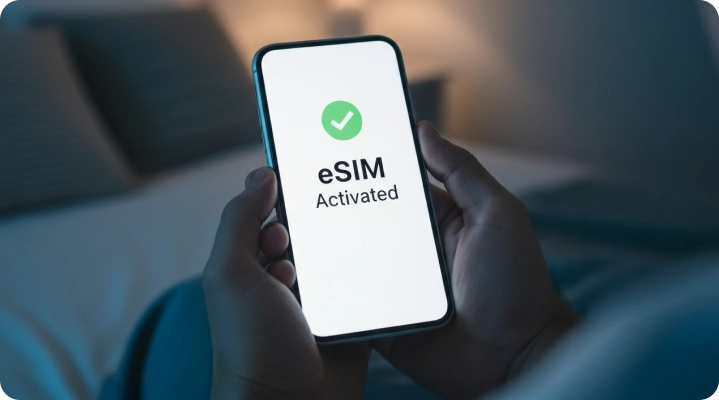
Activate your iPhone eSIM
Scan the activation QR code and follow the prompts. You’re done!
Is Your iPhone eSIM-Compatible? Find Out Here
When it comes to eSIM compatibility in iPhones, you’re usually all set because most iPhones support eSIMs. However, if you still have doubts about whether your iPhone is compatible with eSIMs, look for your device in the list below.
Apple

| iPhone Air | iPhone 17 Pro Max | iPhone 17 Pro | iPhone 17 |
| iPhone 16e | iPhone 16 Pro Max | iPhone 16 Pro | iPhone 16 Plus |
| iPhone 16 | iPhone 15 Pro Max | iPhone 15 Pro | iPhone 15 Plus |
| iPhone 15 | iPhone 14 Pro Max | iPhone 14 Pro | iPhone 14 Plus |
| iPhone 14 | iPhone SE 3 (2022) | iPhone 13 Pro Max | iPhone 13 Pro |
| iPhone 13 Mini | iPhone 13 | iPhone 12 Pro Max | iPhone 12 Pro |
| iPhone 12 Mini | iPhone 12 | iPhone SE 2 (2020) | iPhone 11 Pro Max |
| iPhone 11 Pro | iPhone 11 | iPhone XS Max | iPhone XS |
| iPhone XR | Apple Watch Ultra 2 | Apple iPad Air 3rd, 4th, 5th Generation | Apple iPad 7th, 8th, 9th, 10th Generation |
| Apple iPad Air 11 | Apple iPad Air 13 | Apple iPad mini 5th, 6th Generation | Apple Watch Ultra |
| Apple iPad Pro 13 | Apple Watch 10 | Apple iPad Pro 12.9 | Apple Watch Series 3rd, 4th, 5th, 6th, 7th, 8th, 9th 10th Generation |
| Apple iPad Pro 11 | Apple Watch SE 2nd Generation |
How to Install
an eSIM on an iPhone
Connect your iPhone to a source of internet (preferably Wi-Fi). Then scan the activation QR code from the confirmation email and follow the prompts. That’s it! You’re done.
Get the
Lyca Mobile US App
 One place to manage all your Lyca iPhone eSIMs Get new plans, top-up credit, and do more! Enable/disable auto-renewal and get recharge remainders


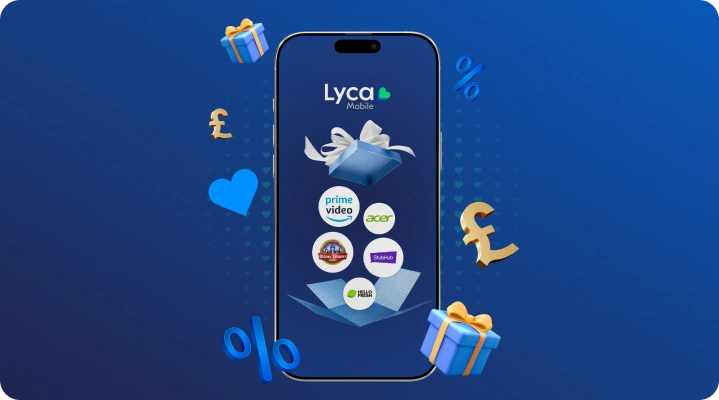
What You Get
with a Lyca eSIM
- Super-fast 5G Data: Enjoy blazing-fast 5G internet at no additional cost.
International Benefits: Lyca’s iPhone eSIM plans come with international talk and text to 100 countries.
Dedicated Hotspot Data:Turn your device into a portable hotspot. Your monthly data allocation stays untouched.


Why Choose Lyca Mobile eSIM for Your iPhone
Activate from Anywhere!
Purchase and activate a Lyca eSIM from anywhere, be it your couch or the library.

One iPhone. Multiple Lines.
Get eSIM plans for different purposes and use them as and when you need them.

Improved Security
eSIMs are invulnerable to theft and are more secure than traditional plastic SIM cards.
What Our Customers Are Saying
Guides, News, and More!

Step-by-Step Guide on How to Buy an eSIM online
25 September, 2024 | by Aafiya Saba
How to set up an eSIM: Everything you need to know?
27 March, 2025 | by Simran Singh

Traveling with eSIM: How It Works and Why You Need One
5 May, 2025 | by Aafiya Saba
FAQs on eSIMs for iPhone
How to activate/set up an eSIM on an iPhone?
There are multiple ways to activate an eSIM on an iPhone. Before you follow the steps below, make sure your iPhone supports eSIMs and that you have a stable internet connection for the eSIM activation process. You’ll also need the activation QR code Lyca Mobile sends you.
Method 1: Using the Camera or Code Scanner App.
Step 1: Connect to Wi-Fi or mobile data.
Step 2: Scan the activation QR code from Lyca Mobile using the Camera or Code Scanner app. The Code Scanner app is usually found in the Control Center.
Step 3: Follow the prompts to activate your Lyca Mobile eSIM for iPhone.
You don’t necessarily need a second device to scan the QR. Just long-press the QR code in the email, and a menu pops up. You can find the Add eSIM option there.
You can also take a screenshot of the QR code and long-press it to initiate the eSIM activation process.
Method 2: Using the Settings App
You can activate your Lyca Mobile eSIM for iPhone through the Settings app as well. Here are the steps.
Step 1: Connect to Wi-Fi or mobile data.
Step 2: Open the Settings app
Step 3: Tap Cellular/Mobile Data/Mobile Service.
Step 4: Tap Add Cellular Plan/Add eSIM.
Step 5: Tap Use QR Code.
Step 6: Tap Scan QR code.
Step 7: Scan the activation QR code from Lyca Mobile and follow the prompts. Your iPhone eSIM should be activated shortly.
Please contact customer service if you’re running into issues when activating your Lyca Mobile eSIM.
How to transfer an eSIM from one iPhone to another?
To transfer an eSIM from one iPhone to another, just follow the steps below. Having the latest versions of iOS (or at least iOS version 18.4 and above) helps.
Step 1: Connect both devices to Wi-Fi or mobile data.
Step 2: On your new iPhone, head to Settings > Cellular/Mobile Data/Mobile Service > Add eSIM and tap Transfer From Nearby iPhone.
Step 3: A Transfer Phone Number screen pops up on your old iPhone. Tap Continue.
Step 4: You will be asked to enter a verification code on your old iPhone. This code will be displayed on your new iPhone.
Step 5: Enter the verification code. You may be asked to double-press the power button (side button) if you have a newer device.
Step 6: Follow the prompts on your new device to complete the eSIM transfer process. If you’re unable to transfer
your eSIM to a new iPhone, contact Lyca Mobile customer support for technical assistance.
Do iPhone 11, 12, and 13 support eSIMs?
Yes, iPhone versions 11, 12, and 13 support eSIMs. All devices released after iPhone XS, iPhone XS Max, and iPhone XR (including these models) come with eSIM support.