



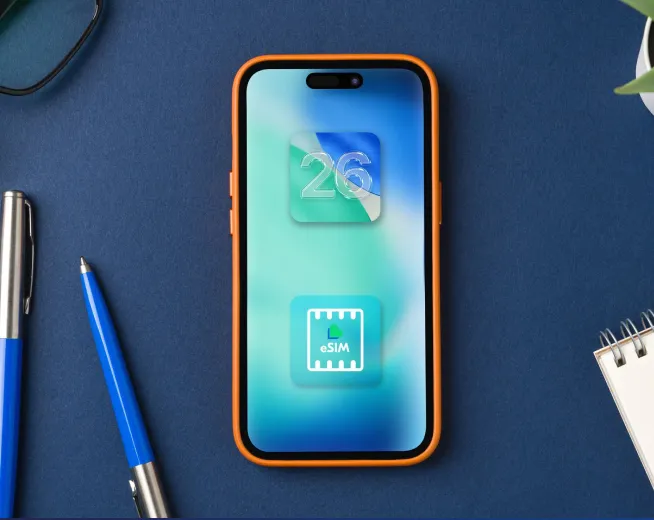
If you’ve just bought an iPhone 17e in the U.S., one thing you’ll immediately notice is that there’s no SIM tray. The iPhone 17e US version is eSIM only, meaning everything is digital.
The good news is that Lyca Mobile supports eSIM on all plans, so you’ll be connected in just a couple of minutes! The only downside is that Lyca Mobile doesn’t appear automatically in Apple’s list of carriers, so you will have to use a QR code to activate it.
What you should know first
The iPhone 17e uses iOS 26 and supports dual eSIMs that allow having two numbers active at the same time. And it works exceptionally well with Lyca Mobile’s network (which runs on AT&T).
Lyca Mobile plans are fairly straightforward. You can choose from basic low-data options to high-data choices, and every plan includes international calling to over 100 countries.
Promo Price for 6 Months
$33 High Data Plan
$ 7.50 / 30 days
18 GB Data
- 18GB data at up to 5G speeds
- Unlimited nationwide talk & text
- Unlimited international talk & text to 100 countries
Promo Price for 9 Months
Unlimited Plus
$ 18.00 / 30 days
Unlimited Data
- Unlimited Talk & Text
- Enjoy unlimited data with full-speed access for the first 40GB!
- Includes 15GB of High-Speed Hotspot Data
Before you start
Make sure that your iPhone is connected to Wi-Fi. You will also need access to the QR code that Lyca Mobile will send you after you've purchased a plan.
Also, make sure your iPhone is unlocked. This shouldn’t be a problem if you bought your device directly from Apple.
Activating your eSIM (the simple way)
Begin by purchasing a plan from the Lyca Mobile website or app. You’ll then receive a QR code by email.
Now pop into your iPhone settings. Navigate to "Cellular/Add eSIM," and select the option to use a QR code. Use your phone to scan the QR code shown on another screen, like a laptop or another phone.
Once scanned, your iPhone will guide you through a short setup. You can name the line something simple, like “Lyca Mobile” or “Primary.”
Then decide if you want this SIM to be your default for calls, texts, and data. Once you press OK, the phone should connect to the network immediately. Try opening a website or making a quick call to make sure the activation was successful.
Manual activation
If you’re looking at the QR code on the same phone and can’t scan it, you can enter the activation details printed under the QR code.
Head to "Cellular/Add eSIM/Use QR code" and tap on "Enter details manually." Then, input the SMDP+ address and activation code from the email. Your eSIM should be activated shortly.
If something isn’t working
If the QR code email hasn’t come in, wait around 10-15 minutes. Also, don't forget to check your spam folder.
If you still don’t see it, you’ll need to get in touch with Lyca Mobile to send it again.
Switch to a stronger Wi-Fi connection or reset your network settings if you're facing eSIM activation issues. If you get an “activation server unavailable” message, consider waiting a couple of minutes and trying again.
And if you do get signal bars, but no internet, make sure that your Lyca Mobile line is actually selected as the active data line in your settings.
"Can I keep my current number when switching to Lyca?" This is one question we often get.
You can keep your current number, whether you’re switching from a Lyca Mobile physical SIM card or any other operator. You’ll find apps like WhatsApp work just the same, as they’re bound to your phone number, not the type of SIM you use.
Just a heads up: if you hard reset your phone, the eSIM vanishes into thin air, and you'll need to have the QR code reissued - the old one won't work.
Need assistance?
If you run into problems, you can reach out to us via call, text, or live chat. Head to the Contact Us page on the Lyca Mobile website to know more.